How Git Works Internally and the Role of the .git Folder
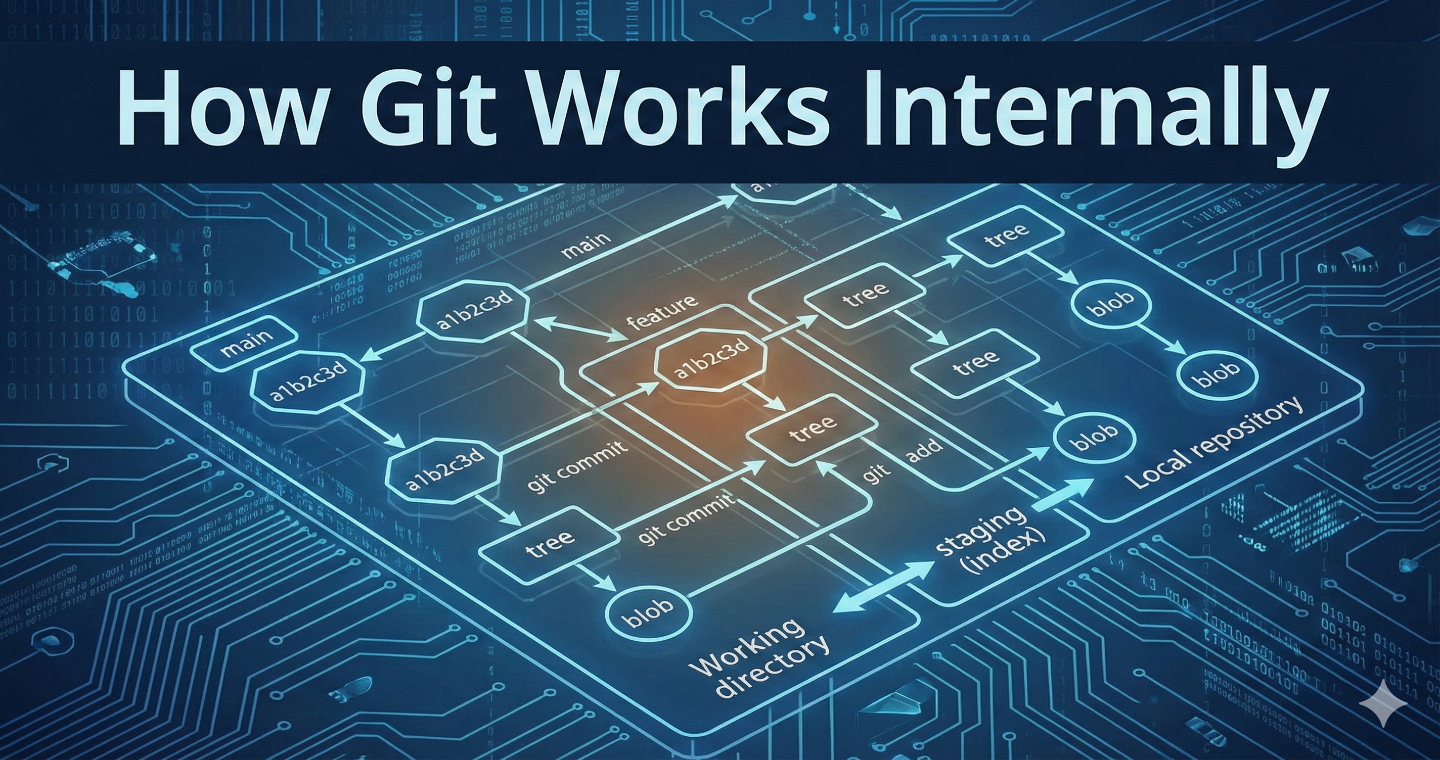
For many developers starting out, Git feels a bit like magic. You type commands like git add and git commit, and somehow, your project’s history is saved perfectly. You can jump back in time, create parallel universes (branches), and merge them back together.
It works so well that we rarely stop to ask: How?
Where does old code go when we change it? How does Git know what changed?
Today, we are going to peek behind the curtain. Don't worry, it’s not black magic; it’s just a very clever system of organizing files. Understanding this will make you much more confident when using Git and help you fix things when they go wrong.
The Git data and the .git folder
If you have a project managed by Git, open that folder on your computer. Depending on your settings, you might see a hidden folder named .git.
If you are on a Mac or Linux machine, you can open a terminal in your project and type ls -a to see it.
This folder is everything.
Your actual project files (your HTML, CSS, Python scripts, etc.) are just your "working copy." You could delete them all right now, and as long as you kept the .git folder, you wouldn't lose any project history.
Conversely, if you delete the .git folder, your project immediately stops being a Git repository. You’ll just have a regular folder full of files with no history of past versions.
What’s inside the .git folder?
Think of the .git folder as the engine room of your project. It contains a database and a bunch of bookmarks.
While there are many files inside, here are the three most important concepts tucked away in there:
The Object Database (
/objects): This is where the actual content of your files and commits is stored compressed. It’s the heart of Git.References (
/refs): These are like sticky notes pointing to specific moments in history. Your branch names (likemainordevelop) live here. They just point to the latest commit on that branch.HEAD: A special file that tells Git: "You are currently standing HERE." It usually points to the branch you are currently on.
How Git works internally
To understand Git, you have to forget how you think version control works.
Many people assume Git works by saving a list of changes (deltas). For example, they think Git says: "In version 2, line 10 changed from 'Hello' to 'Goodbye'."
That is not how Git works.
Instead of storing changes, Git stores snapshots.
Every time you make a commit, Git basically takes a picture of what your entire project looks like at that exact moment and stores it.
If a file hasn't changed between version 1 and version 2, Git is smart enough not to store a duplicate copy. It just makes a link pointing back to the previous version of the file to save space.
The "Three Musketeers" of Git Objects
Inside that .git/objects folder we mentioned earlier, Git stores pieces of information called "objects." There are three main types you should know to understand the magic.
1. The Blob (Binary Large Object)
This is the simplest object. A blob just holds the contents of a file.
It doesn't know the file's name, and it doesn't know when it was created. It only knows the raw text inside.
- Analogy: Imagine taking a printed photograph and cutting off the white borders so you just have the image. That image is the blob.
2. The Tree
A tree gives context to blobs. A tree object corresponds to a folder (directory) in your project.
A tree file is essentially a list that maps filenames to blobs. It says: "The file named index.html corresponds to this specific blob, and the file named style.css corresponds to that specific blob." Trees can also contain other trees (sub-folders).
- Analogy: A tree is like a photo album's table of contents. It tells you which photo goes on which page and what caption belongs to it.
3. The Commit
This is the object you interact with most. A commit object is a wrapper around a Tree object.
A commit ties everything together. It contains:
A pointer to the main Tree (the snapshot of your project).
The author name and email.
The timestamp.
Your commit message.
Crucially, a pointer to the parent commit (the commit that came immediately before this one).
Analogy: A commit is like sealing the photo album in an envelope, writing the date on the front, signing your name, and gluing it to the previous envelope.
The Secret Sauce: SHA-1 Hashes
How does Git keep track of all these blobs, trees, and commits without getting confused?
It uses something called a SHA-1 hash. This is a 40-character string of numbers and letters that looks like gibberish (e.g., 6d8c1760...).
Git takes the content of a file, runs it through a mathematical formula, and generates this unique ID.
If you change even a single comma in a file, the resulting SHA-1 hash changes completely. This is how Git knows instantly if a file has been modified. The filename doesn't matter to Git internally; only the hash of its content does.
How Git track changes
Now that we know about the .git folder and the objects inside it, how does the actual workflow of git add and git commit use them?
It helps to visualize three separate areas:
The Working Directory: The files you are currently editing in your text editor.
The Staging Area (often called the "Index"): A waiting room where you organize what will go into the next snapshot.
The Repository (.git folder): Where snapshots are permanently stored.
The Journey of a File Change
Let's walk through a real example. You have a file named hello.txt that contains the text "Hello World".
Step 1: You edit the file
You change "Hello World" to "Hello Git" and save the file.
- Git Status: Git notices that the file in your working directory is different from the one in the current commit. It marks it as "modified."
Step 2: You type git add hello.txt
This is where things get interesting. When you run this command, two things happen internally:
Git immediately takes the new content ("Hello Git"), creates a new Blob object, calculates its hash, and saves it into the
.git/objectsfolder.Git updates the Staging Area (Index). The Index is basically a draft list of the next commit. Git updates this list to say: "For the file
hello.txt, use this new blob hash."
Step 3: You type git commit -m "Updated greeting"
Now Git wraps up the package.
It looks at the Staging Area to see what the project should look like.
It creates a Tree object that represents that structure.
It creates a Commit object. This commit points to that new Tree, includes your message ("Updated greeting"), records the time, and points back to the previous commit as its parent.
Finally, it updates your current branch (like
main) to point to this brand new commit hash.


